


How to Build a Custom Meal in Your Wellness App: A Step-by-Step Guide
Introduction
Many people now rely on mobile apps to support healthier eating habits. A standout feature of most wellness platforms is the option to save and track your own meals. This article walks you through the simplest way to build a custom meal entry so you can stay consistent without extra hassle.
Understanding the Basics
Most tracking apps center on a point or credit system that balances nutrition with portion size. Once you grasp that idea, adding personal recipes becomes quick and intuitive.
Accessing the Meal Builder
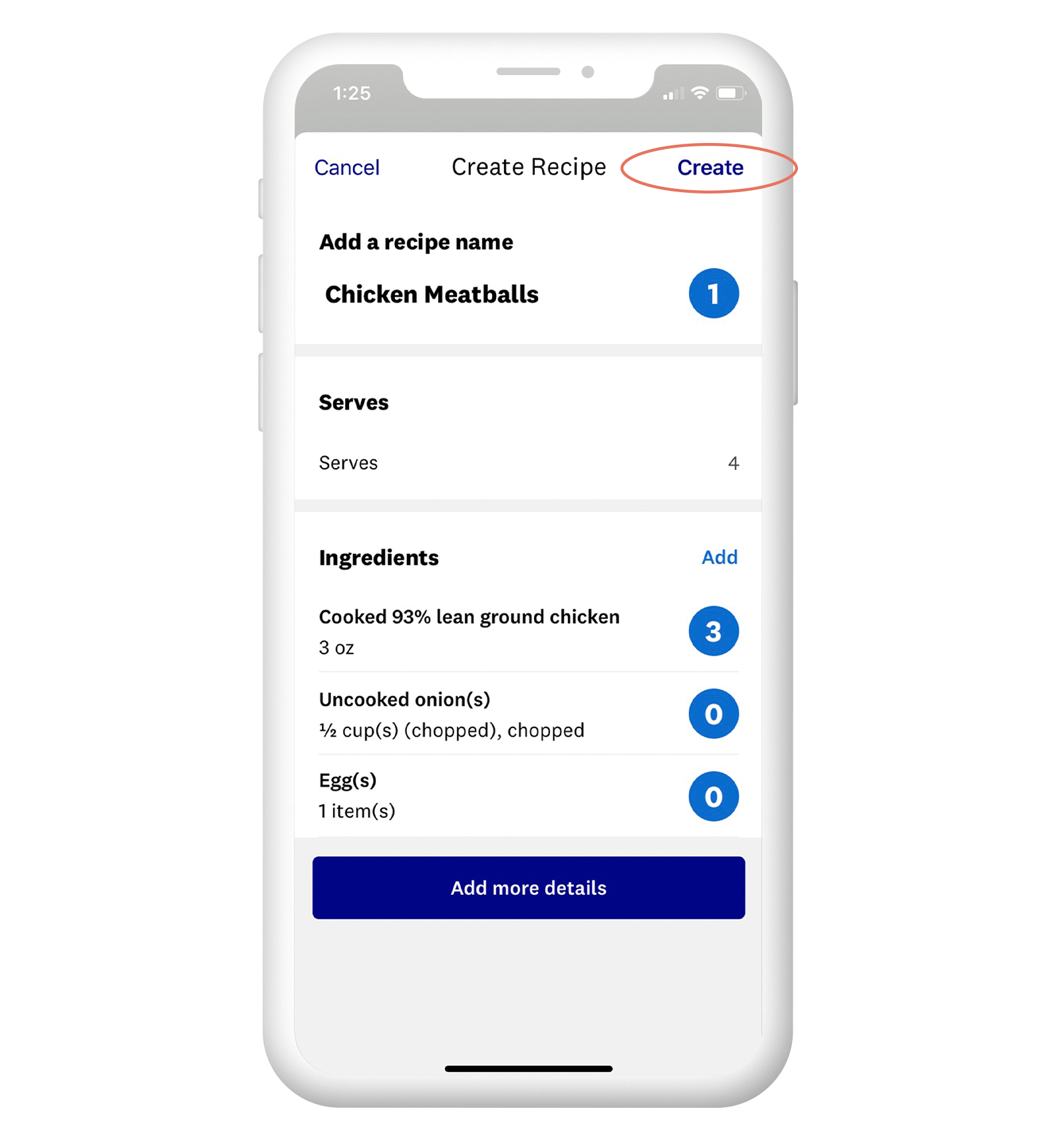
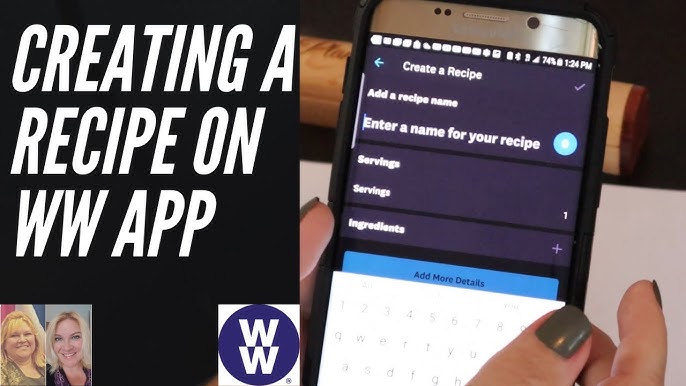
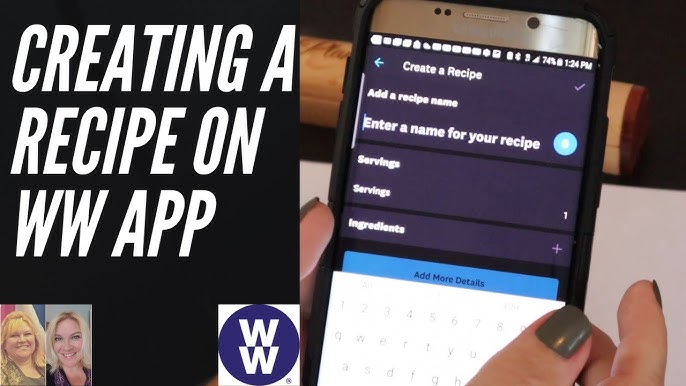
To start, open your app and look for the “Recipes” or “Meals” tab. Tap the plus icon or “Create” button to open the builder.
Entering Meal Details
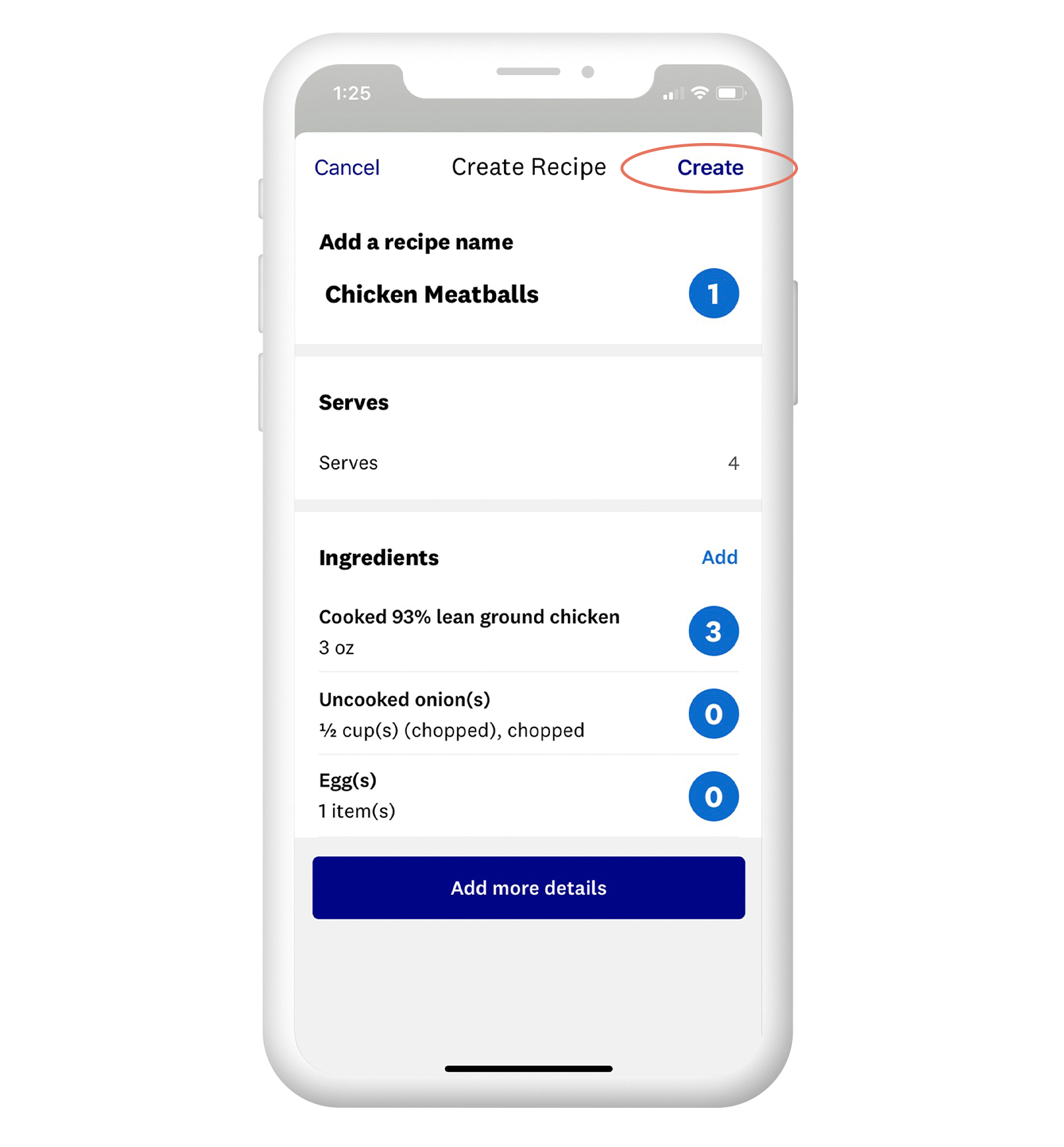
Next, fill in the basic fields:
1. Meal Name
Choose a clear title such as “Lemony Herb Chicken” or “Weeknight Veggie Skillet.”
2. Short Description
Add a quick note about the style—quick, family-friendly, high-protein, etc.
3. Ingredients
List each item with simple measurements: “1 tsp olive oil,” “2 cups broccoli florets,” “3 oz cooked quinoa.”
4. Instructions
Type the steps in plain language so you can follow them later without guesswork.
Calculating Values
The app will convert your list into a single score once every ingredient is saved. Double-check quantities so the total reflects the portions you actually eat.
Tips for Lighter, Balanced Meals
Use these ideas to keep totals friendly:
1. Prioritize Produce
Vegetables and fruit add volume and flavor for minimal cost.
2. Swap Smartly
Trade full-fat dairy for lighter versions or use citrus and herbs instead of heavy sauces.
3. Watch Portions
Weigh or measure the first few times; soon you’ll eyeball servings with confidence.
Conclusion
Building your own meals inside the app keeps you in control of flavor and nutrition. Stick to whole ingredients, season boldly, and let the tracker handle the math—healthy eating becomes second nature when the planning is this simple.


